Managing Access Requests
This guide explains how to create, view, and manage access requests within the Partners Portal.
Understanding Access Requests
Access requests are used when you need to establish a partnership with a school in the system. Once your request is approved, you'll be able to access the school's information, students, and other relevant data.
Creating a New Access Request
To request access to a school:
- Navigate to the "Requests" page.
- Click the "Add New" link in the table header.
- Fill out the access request form with the following information:
- School Name: The official name of the school you're requesting access to.
- School Email: The contact email for the school.
- School URL: The website address of the school (if available).
- Message: A brief explanation of why you're requesting access.
- Click the "Send" button to submit your request.
Your request will be reviewed by the school administrators. You'll be notified when your request is approved or rejected.
Viewing Your Access Requests
To view all your access requests:
- Navigate to the "Requests" page. The link may be located in the main navigation menu.
- The page displays a table listing all your access requests.
For each request, the following details are displayed:
- School Name: The name of the school you've requested access to. Clicking the name will take you to the request's detailed information page.
- School Name Short: An abbreviated version of the school's name, if available.
- Contact Information: A set of icons providing quick access to the school's contact details (phone, email, website, social media).
- Date Modified: The date and time when the request was last updated.
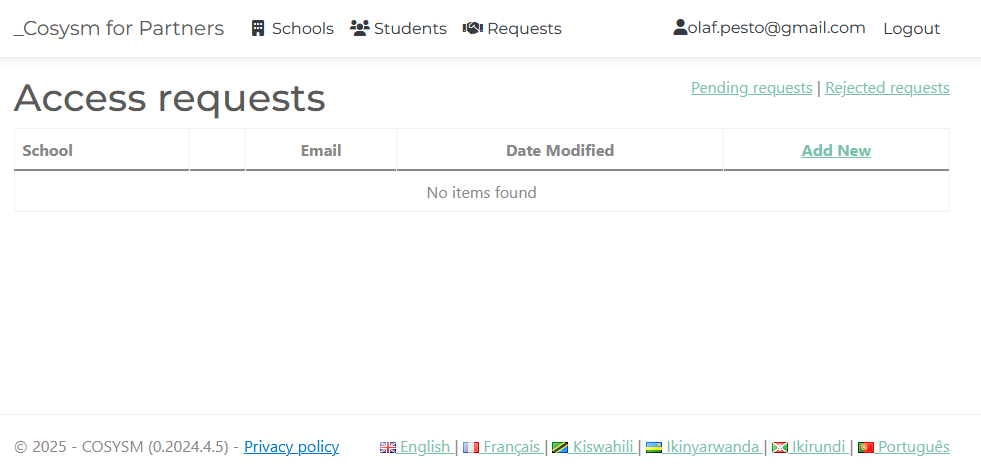 Figure 1: The main Access Requests page showing a list of all requests
Viewing Pending Access Requests
To view only your pending access requests:
- Navigate to the "Requests" page.
- Click the "Pending Requests" link in the top-right corner of the page.
- The page will display a table listing only your pending access requests.
Pending requests are those that have been submitted but not yet approved or rejected by the school administrators.
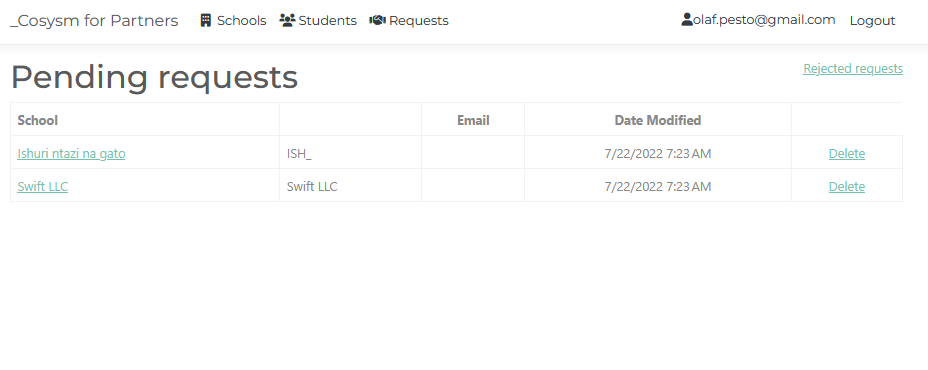 Figure 2: The Pending Access Requests page showing only pending requests
Viewing Rejected Access Requests
To view only your rejected access requests:
- Navigate to the "Requests" page.
- Click the "Rejected Requests" link in the top-right corner of the page.
- The page will display a table listing only your rejected access requests.
For rejected requests, you may want to review the details to understand why the request was rejected. You can then submit a new request with updated information if needed.
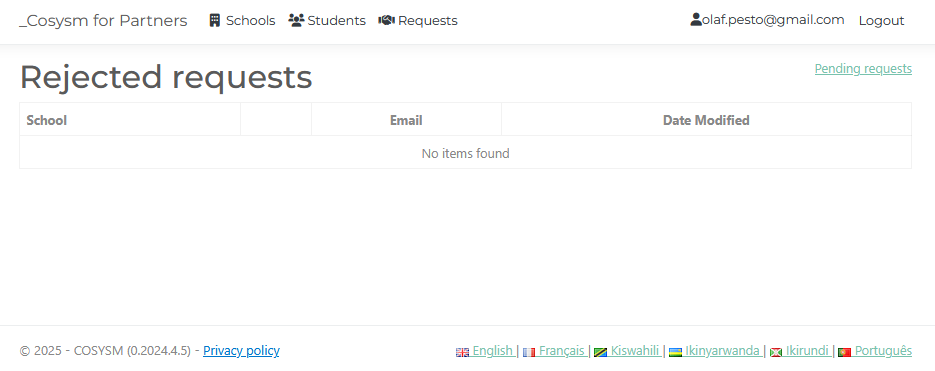 Figure 3: The Rejected Access Requests page showing only rejected requests
Managing Access Requests
From the requests list, you can:
- Click on a school name to view detailed information about the request.
- Delete a request by clicking the "Delete" link in the corresponding row.
×
![]()