Dashboard Overview
The dashboard provides a central overview of your partner account, displaying a list of associated schools and quick access to key information.
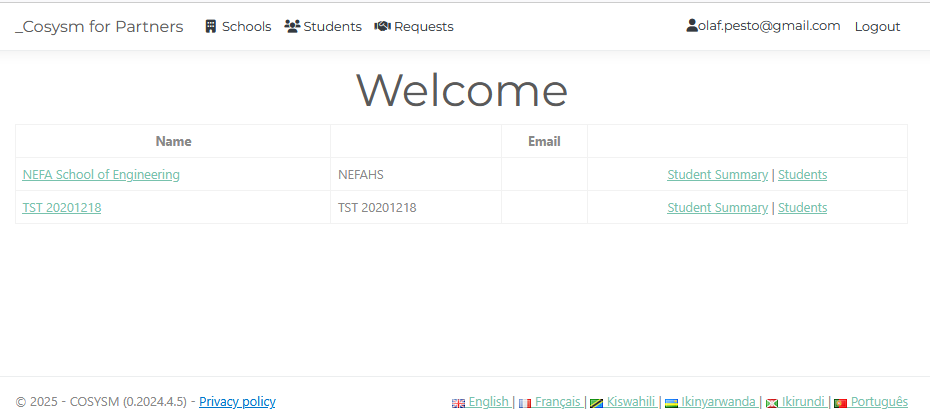 Figure 1: The main dashboard showing the list of associated schools
School List
The main section of the dashboard presents a table of schools linked to your partner account. For each school, the following details are displayed:
- School Name: The official name of the school. Clicking the name will take you to the school's detailed information page.
- School Name Short: An abbreviated version of the school's name, if available.
- Contact Information: A set of icons providing quick access to the school's contact details:
- Phone: A phone icon that, when clicked, will initiate a call to the school's phone number (if available).
- Email: An email icon that, when clicked, will open a new email message addressed to the school's email address (if available).
- Website: A globe icon that, when clicked, will open the school's website in a new tab (if available).
- Twitter: A Twitter icon that, when clicked, will open the school's Twitter page in a new tab (if available).
- Facebook: A Facebook icon that, when clicked, will open the school's Facebook page in a new tab (if available).
Actions
In addition to the school details, each row in the table includes links to perform actions related to the school:
- Student Summary: Navigates to a page displaying a summary of student-related information for the school.
- Students: Navigates to a page listing all students associated with the school.
×
![]()