How to Authenticate and Manage Your Profile
This guide explains how to log in, log out, and manage your profile information within the Nefsys Cosysm Partner Portal.
Logging In
- Navigate to the portal's login page. If you access any protected page without being logged in, you will be automatically redirected.
- The portal uses an external identity provider for authentication. You will be redirected to its login screen.
- Enter your credentials (username and password) on the identity provider's page.
- Upon successful authentication, you will be redirected back to the Partner Portal dashboard.
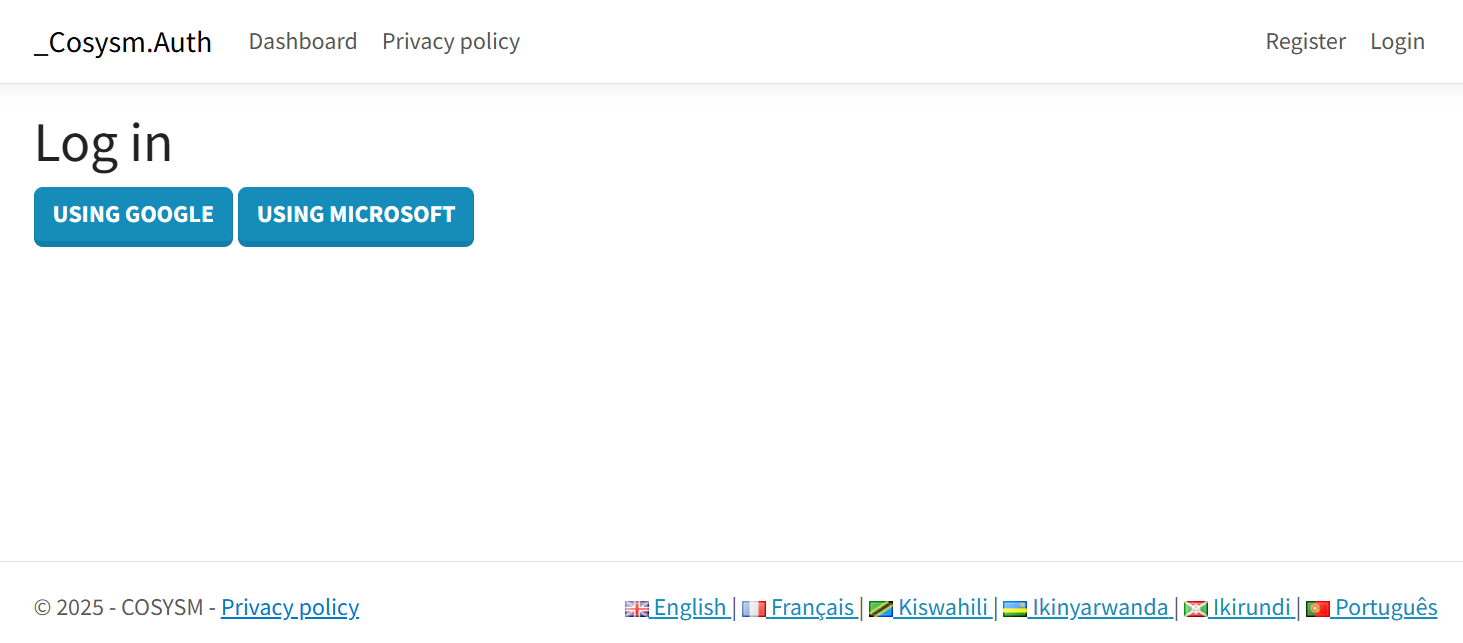 Figure 1: The login screen where you enter your credentials
Note: The specific appearance of the login screen depends on the configured identity provider.
Managing Your Profile
Once logged in, you can view and update your profile information.
- Locate the section displaying your user information, typically in the header or a dedicated user menu.
- Click on the link or button to access your profile page (often labeled "Profile", "My Account", or similar).
- On the profile page, you will see your current details, such as:
- Name
- Email
- Phone Number
- National ID
- To update your information, modify the relevant fields in the provided form.
- Click the "Save" or "Update Profile" button to submit your changes.
- A confirmation message ("Your profile has been updated") will appear if the update is successful.
Logging Out
- Find the "Logout" link or button, usually located near your profile information or in the user menu.
- Click "Logout".
- You will be signed out of the Partner Portal and potentially the external identity provider as well. You may be redirected to the login page or a confirmation page.
×
![]()