Guardians Portal: Adding a New Student
This guide explains the two methods for adding a new student (dependent) to your Guardians Portal account.
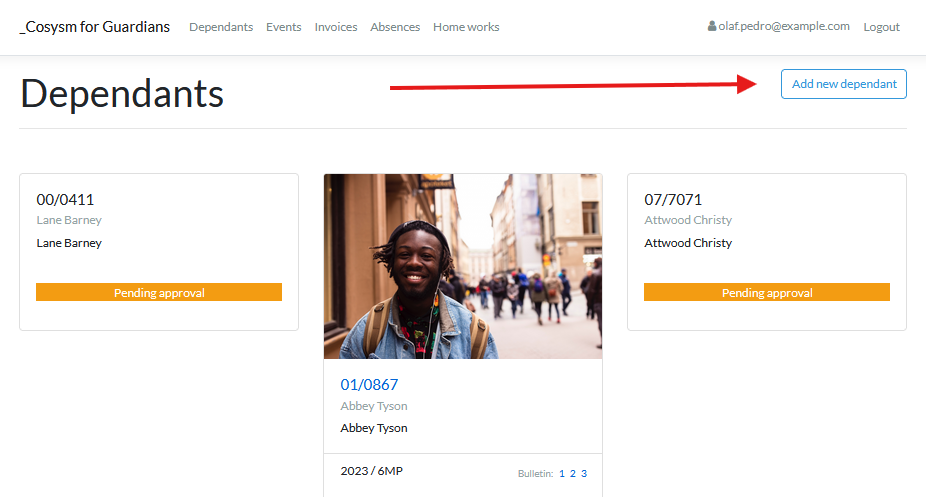
Accessing the Add Student Page
- Log in to the Guardians Portal.
- Navigate to the "Students" section from the main menu or dashboard.
- Look for an "Add Student" or "New Dependent" option.
Method 1: School Administration Assignment
The primary method for adding a student is to have the school administration link the student to your account:
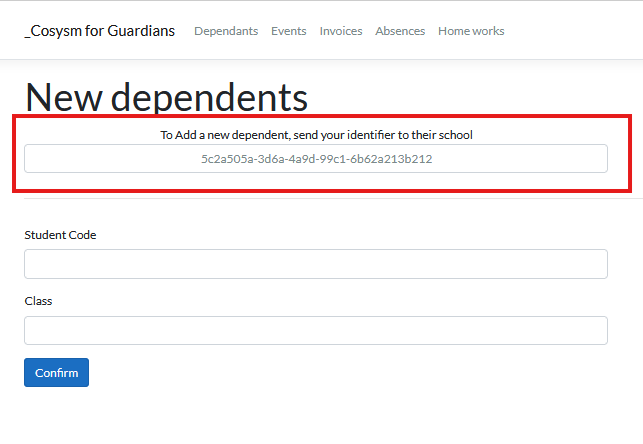
- On the "New Dependents" page, you will see your unique guardian identifier displayed.
- Share this identifier with the school administration.
- The school will use this identifier to link the student to your account in their system.
Method 2: Self-Assignment Using Student Code
If your school allows it, you can also directly add a student yourself:
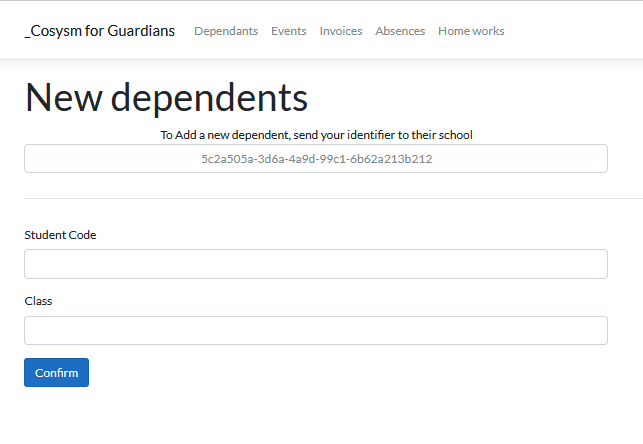
- Scroll down to the student information form on the "New Dependents" page.
- Complete the form with the following information:
- Student Code: Enter the student's identification code provided by the school.
- Class Code: (If required) Enter the student's class code.
- School Name: (If required) Enter the name of the student's school.
- Date of Birth: (If required) Enter the student's date of birth.
- Review all entered information for accuracy.
- Click the "Confirm" button to submit the form.
- If successful, the student will be added to your account and appear in your list of students.
If you encounter any errors when using the self-assignment method, check that all required fields are filled correctly and that the student code matches the records at the school.