Guardians Portal: Managing Student Absences
This guide explains how to view, report, edit, and delete student absences using the Guardians Portal.
Viewing Absences
- Navigate to the "Absences" section from the main menu or dashboard quick links.
- You will see a list of recorded absences for your student(s).
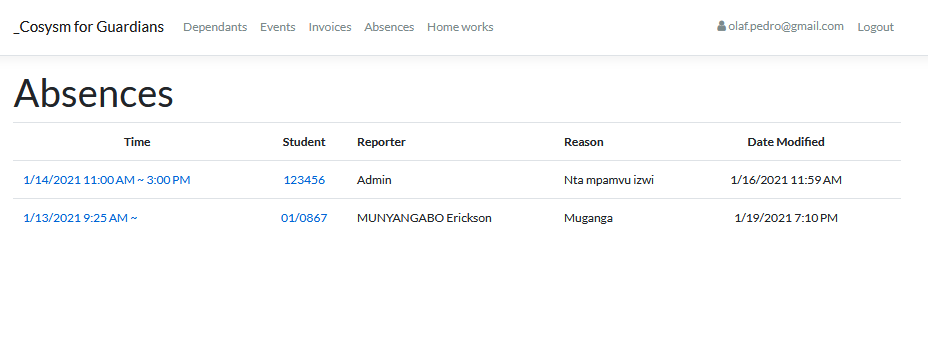
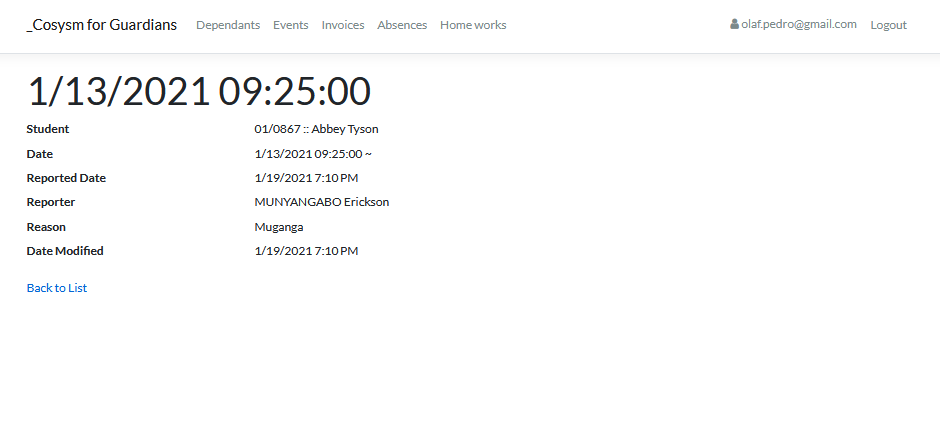
- Click on an absence entry to view more details.
Reporting a New Absence
- From the main Absences list page, click the "Report New Absence" or "Create" button.
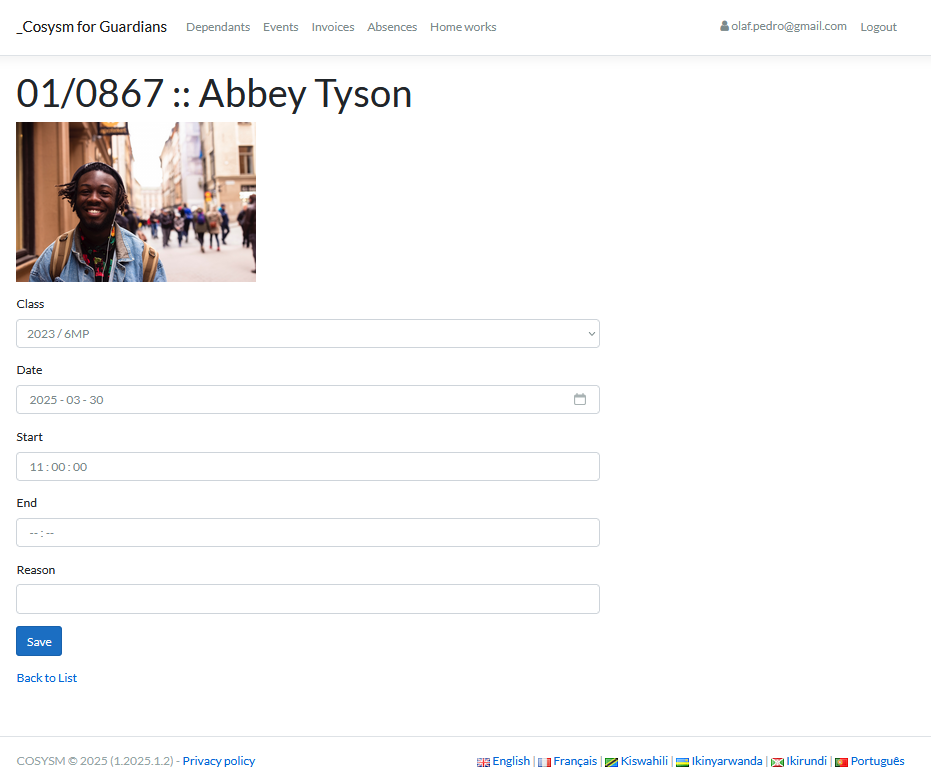
- Fill in the required details:
- Student Name
- Date(s) of Absence (Start and End)
- Reason for Absence
- Any supporting documents (if applicable)
- Click "Submit" or "Save".
Editing an Existing Absence
Note: Editing might be restricted based on school policy or time elapsed.
- Navigate to the Absences list.
- Find the absence you wish to edit and click the "Edit" icon or link associated with it.
- Modify the necessary details in the form.
- Click "Save" or "Update".

Deleting an Absence
Note: Deleting might be restricted based on school policy.
- Navigate to the Absences list.
- Find the absence you wish to delete.
- Click the "Delete" icon or link. You might be asked to confirm the deletion.

Following these steps allows you to effectively manage your student's absence records through the portal.